
In addition to the agent having access, here are a few ways to add additional users to your Quote & Apply eApplications.
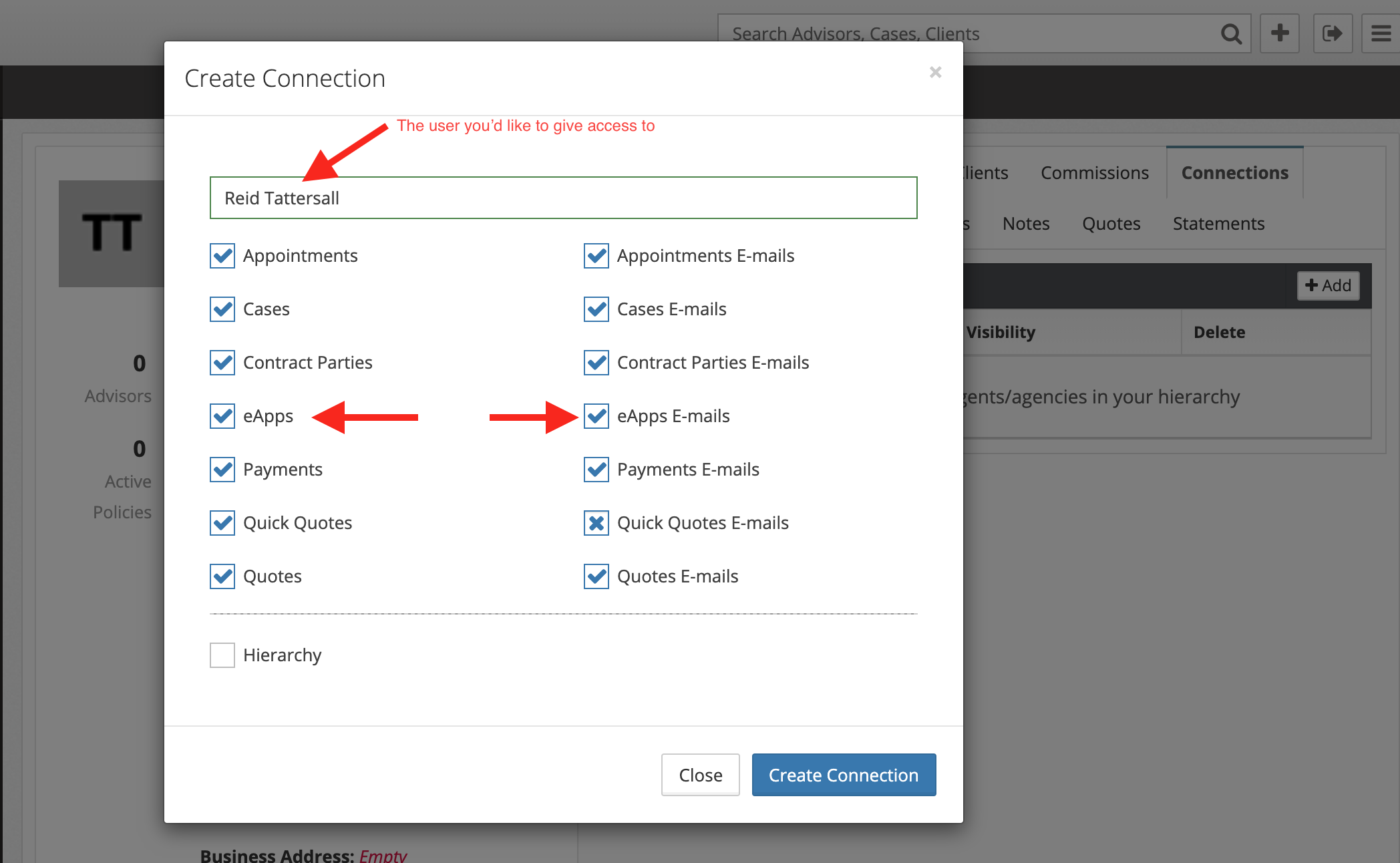
1. The most common method is adding a connection to the agent. This will give the connection you add access to all of the agent's past and future eApplications. Navigate the agent > click the Connections tab > click + Add > enter the name of the user > create connection. Make sure to check the box for "eApps" to give the user access. Check the box "eApps Emails" if you want the user to be emailed when notes are made on the eApplication. 
2. If you want to add a user to only a specific Quote & Apply, add the user as an Approved Domain Access. This will give the user access to future eApplications started from the specific Quote & Apply opposed to adding a connection which gives the user access to all of an agent's past and future eApplications. To add the Approved Domain Access, go to Quote & Apply > Setup > click the gear icon next to the Quote & Apply website you'd like to provide the user access to > click Add > search for the user > click the checkmark to save. Checking "Email" will send the user emails when notes are made on the eApplication. Checking "Round Robin" will only add one user where "Round Robin" is checked. For example, if you have 3 agents but only want 1 of them to be given access to each eApplication, Round Robin will randomly add 1 of the 3 agents to the eApplication. "Add to Case" will automatically add to the user to the case that gets created when the eApplication is completed.

3. If you ever need to give a user access to just a specific eApplication, you can do so by viewing the eApplication > click the user group icon > search for the user > push enter. 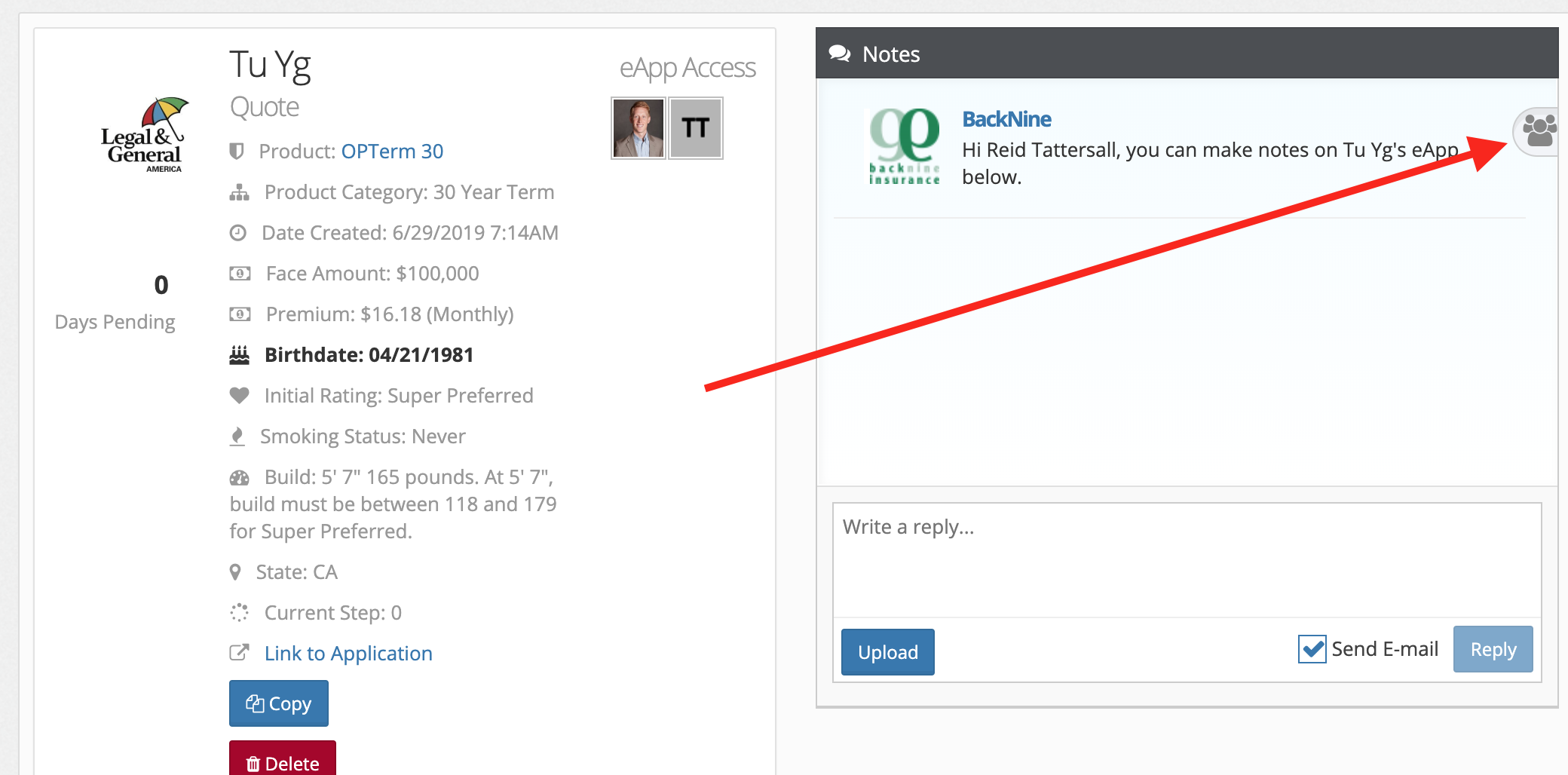

Comments
0 comments
Please sign in to leave a comment.